AI Integration
Enabling the feature
To enable the feature you need to activate the spring boot profiles: prod, api-docs and ai-integration. Using the environment variable:
SPRING_PROFILES_ACTIVE=prod,api-docs,ai-integration
To run this profile correctly more environment variables need to be set:
AST_CONTROL_PANEL_INTEGRATION_FASTAPI_CHAT_URL=https://url-to-keystone.com
| Property | Description |
|---|---|
| AST_CONTROL_PANEL_INTEGRATION_FASTAPI_CHAT_URL | URL of the AI service endpoint |
Changes to application behavior
After the activation of the AI profile there are only a handful of changes to the UI.
The most prominent is the new modal when creating a testcase. Here you can choose between the classic way or create the testcase via AI.
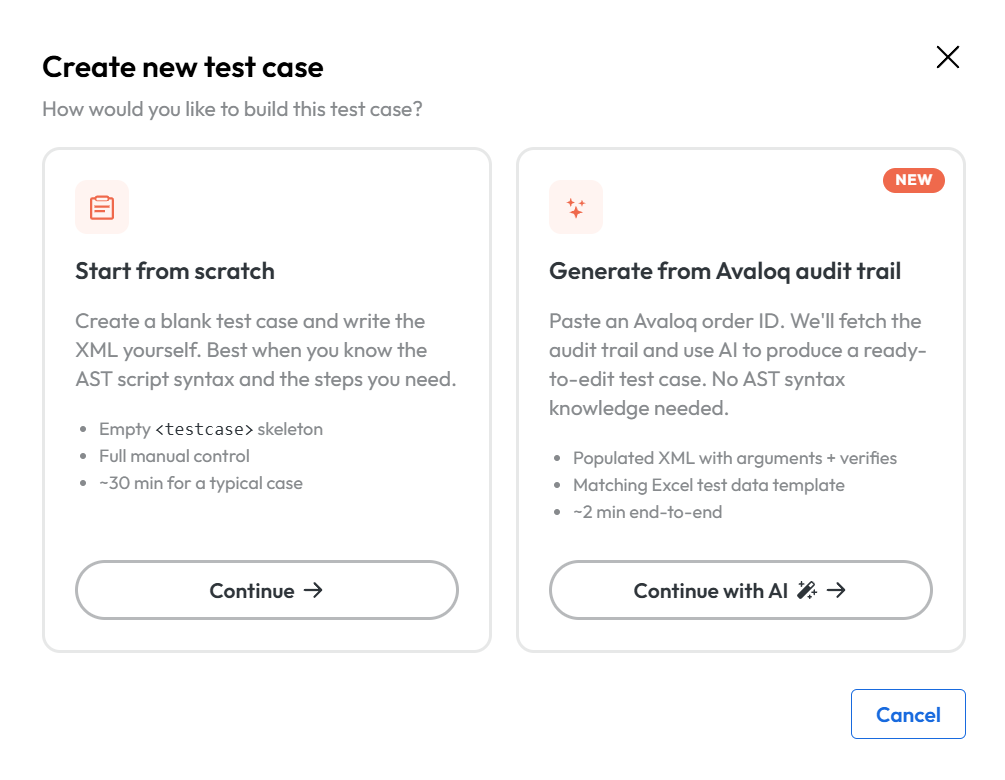
After clicking on the Continue with AI button another dialog is shown.
In this dialog you are able to upload the screenshot/pdf of the audit trail from your computer.
You can choose different AI models and also an example audit trail is shown.
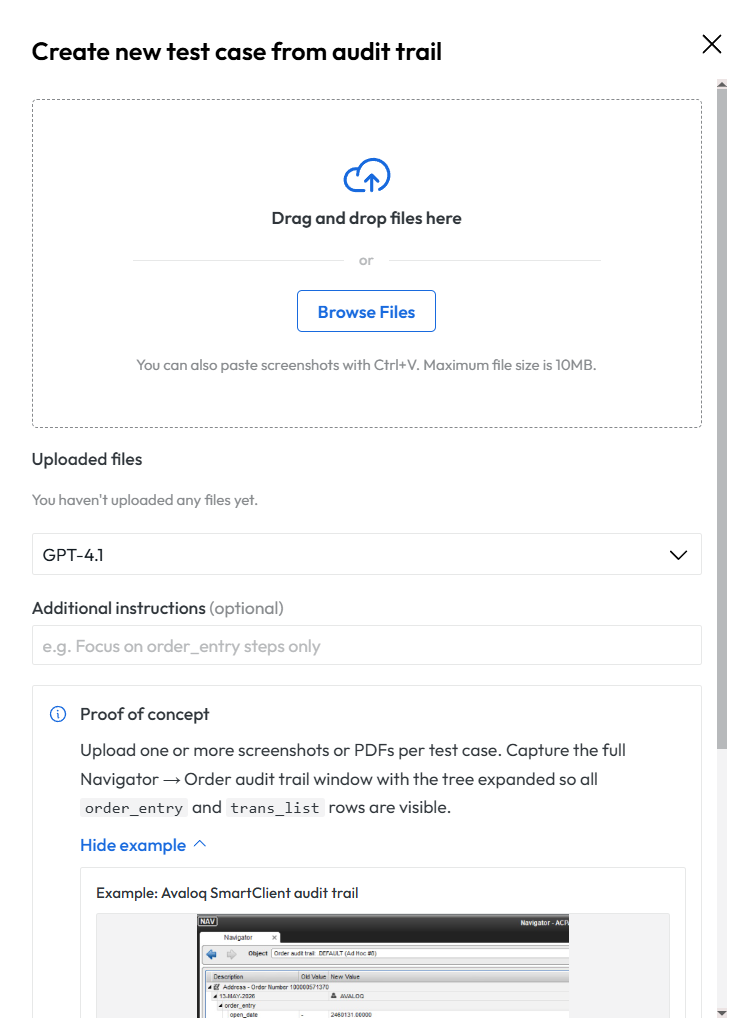
After pressing the create button the screenshot will be sent to the AI and a loading icon is displayed. During the generation you can freely use the solution.
After the generation is over the testcase will be shown in the Tests view.
The testcase will be open at creation.
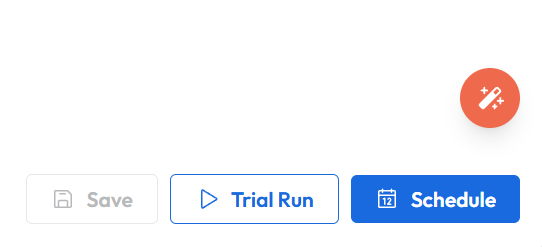
Another change in the UI is the AI assistant button which is present at the bottom right of every open testcase. Further modification of the testcase can be made via a chat with the AI.